Maximilian Pittne
Example 1
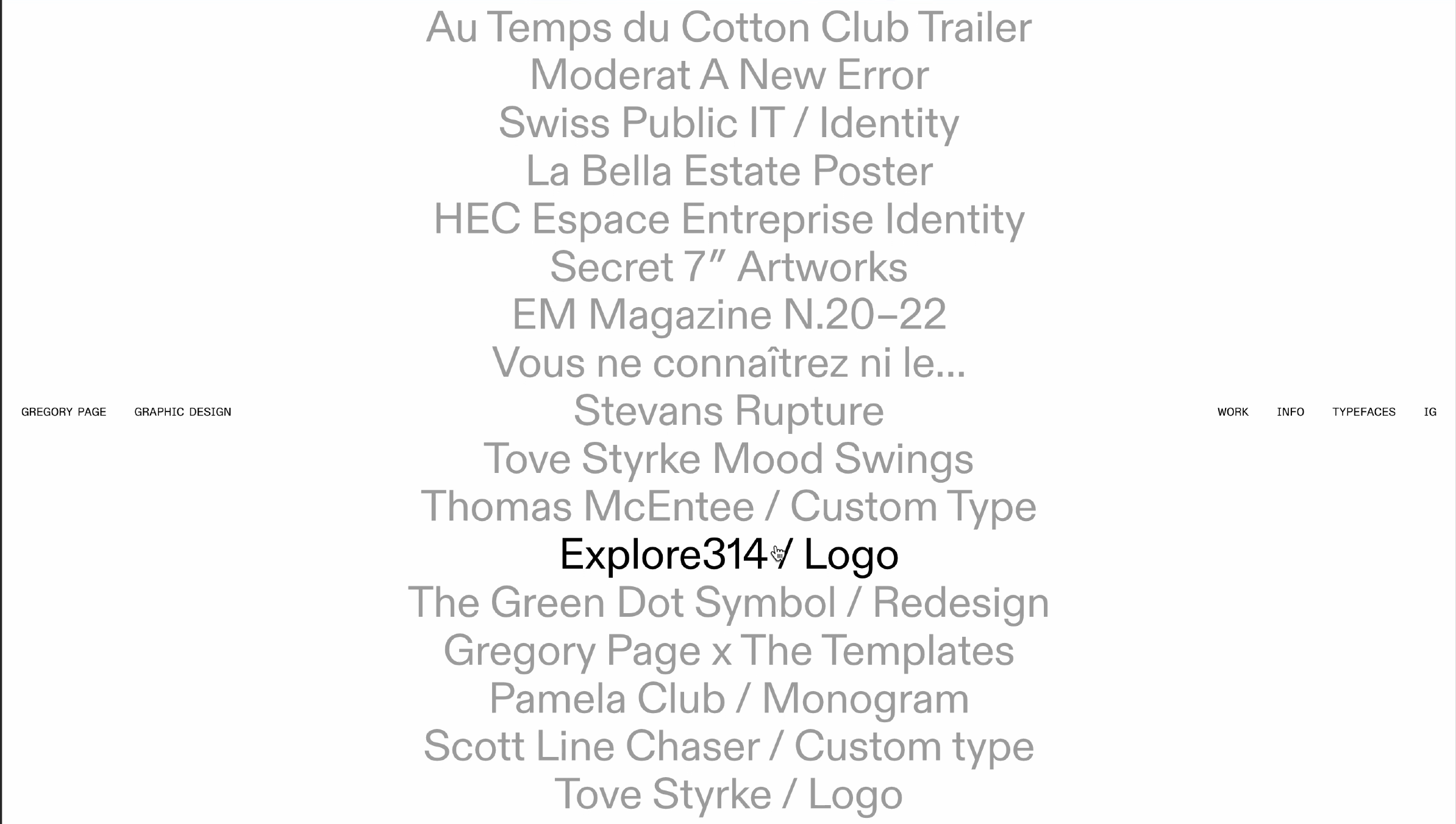
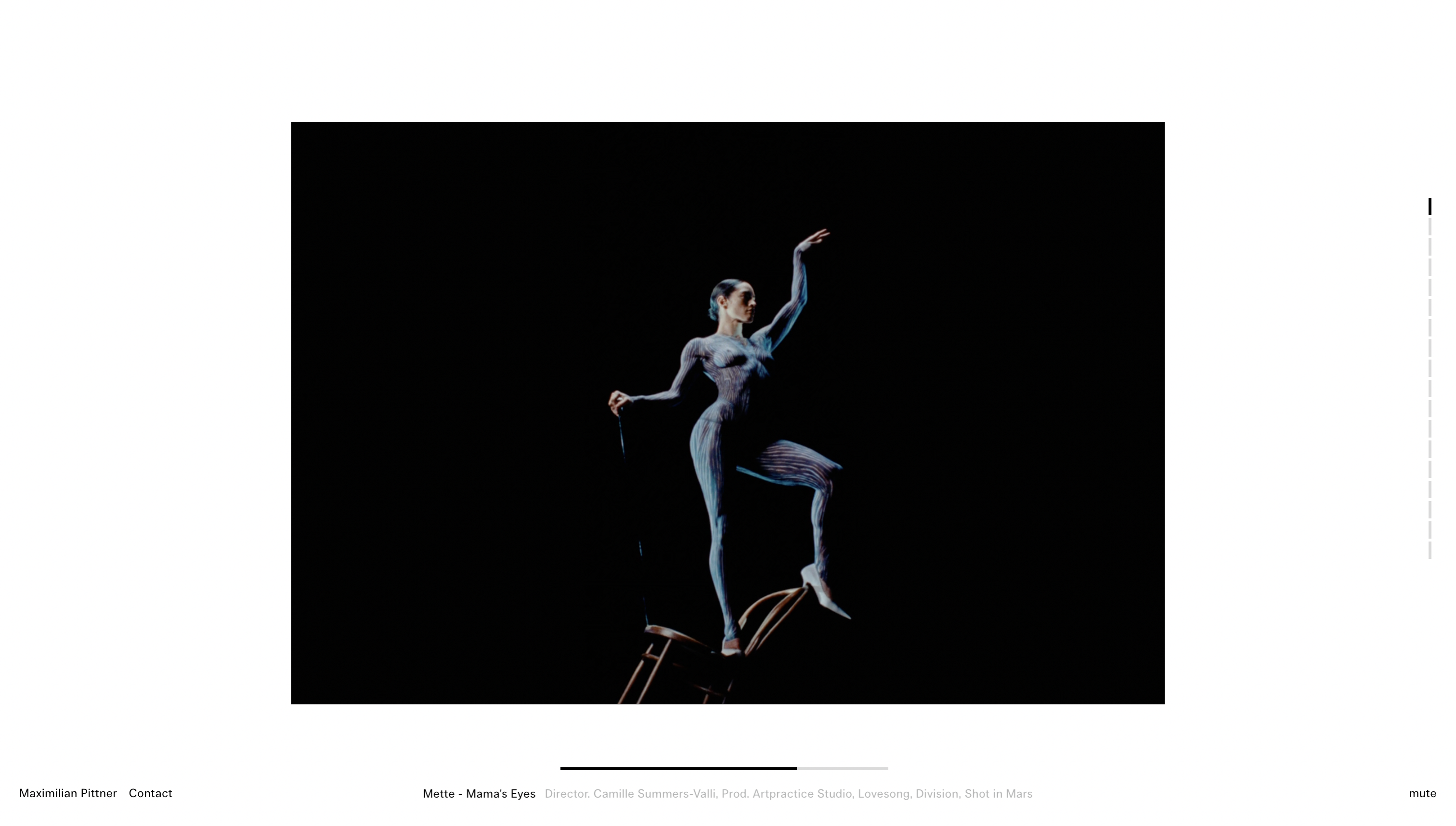
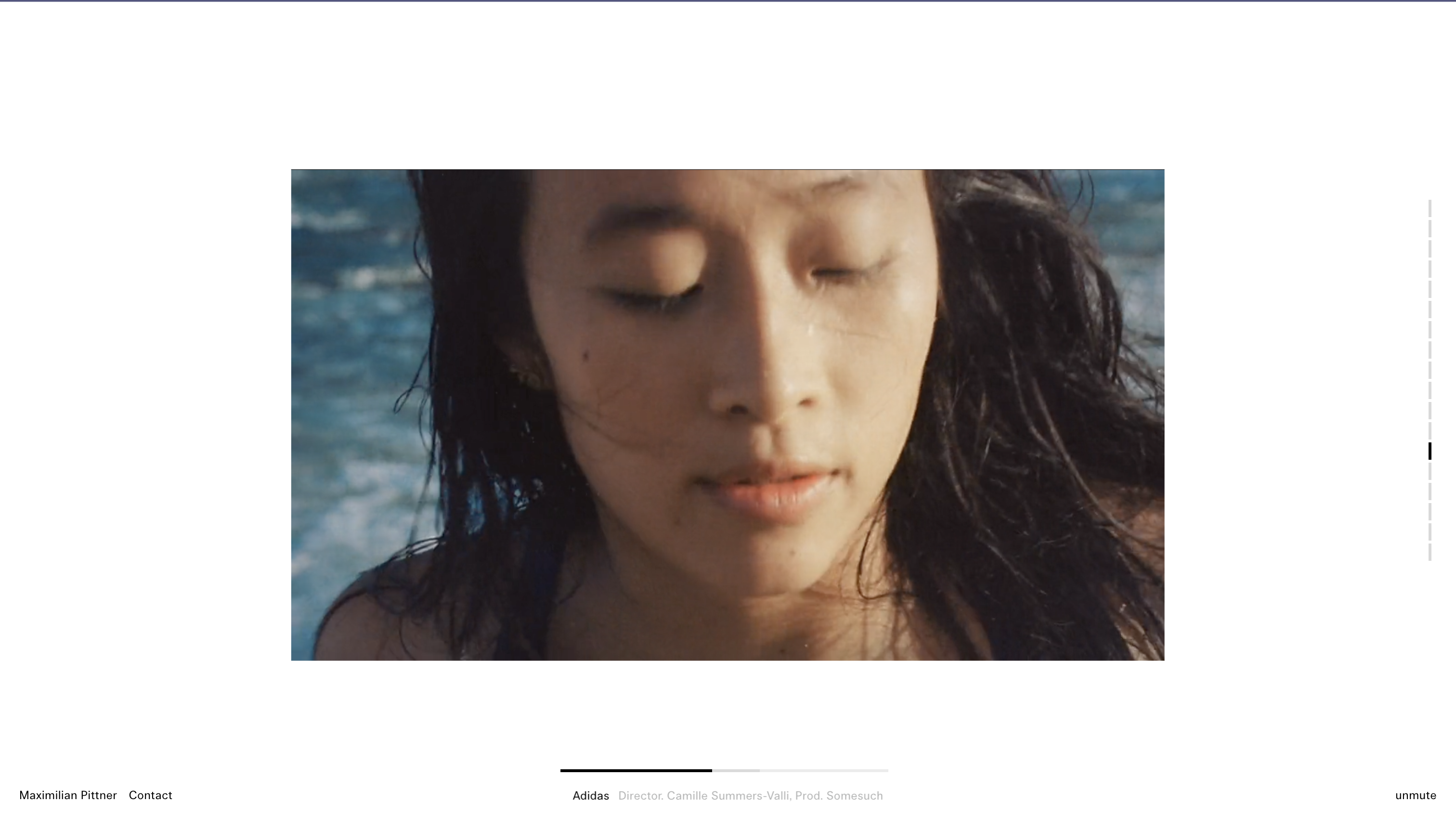
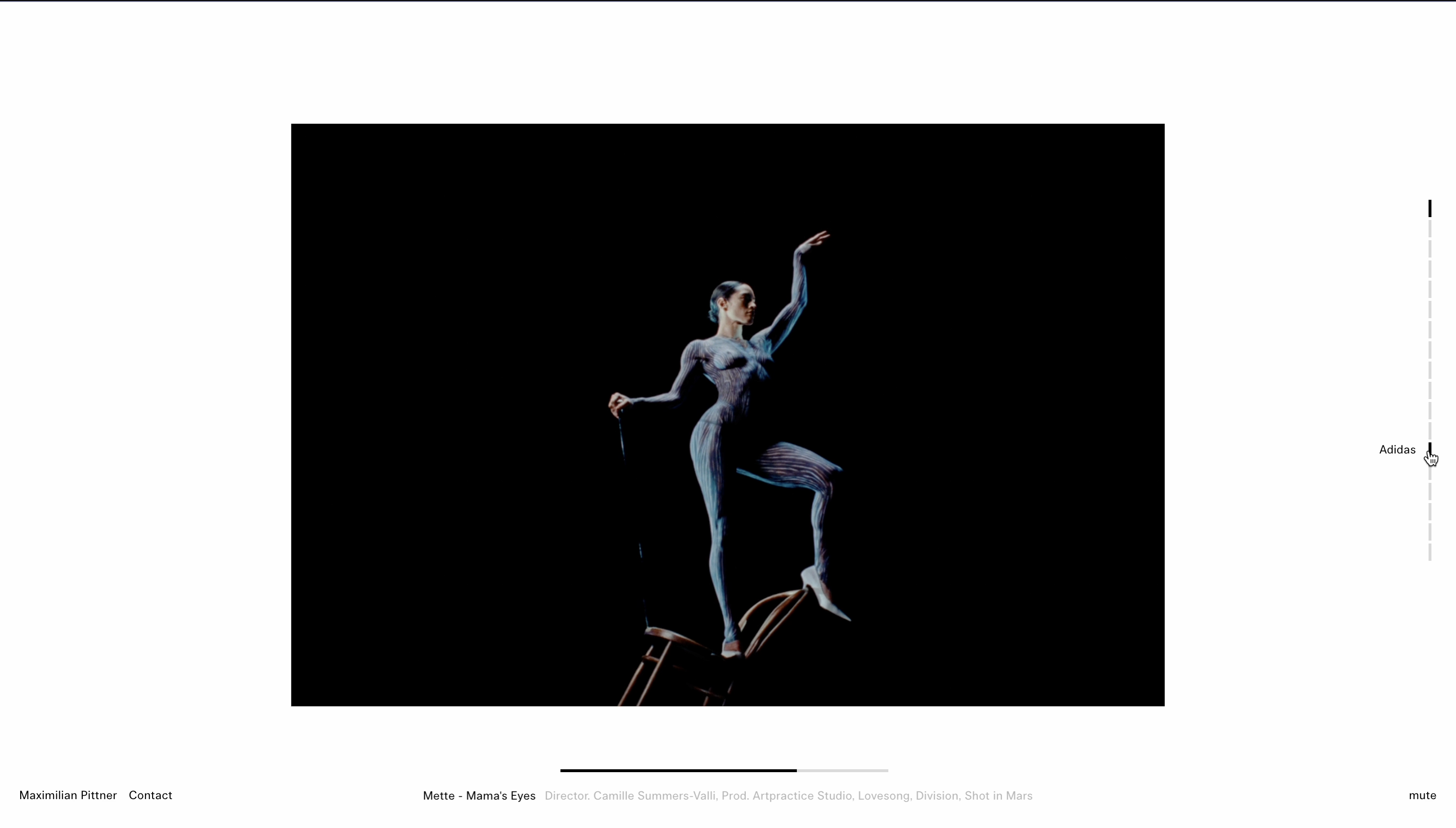
- The project “button” bar has the affordance to be clicked, which then takes you to the desired project
- When the cursor hovers on any of the project buttons on the bar it gets transformed into pointer, and along with this the name of the project also gets displayed and once its clicked it takes you to the selected project.
Example 2
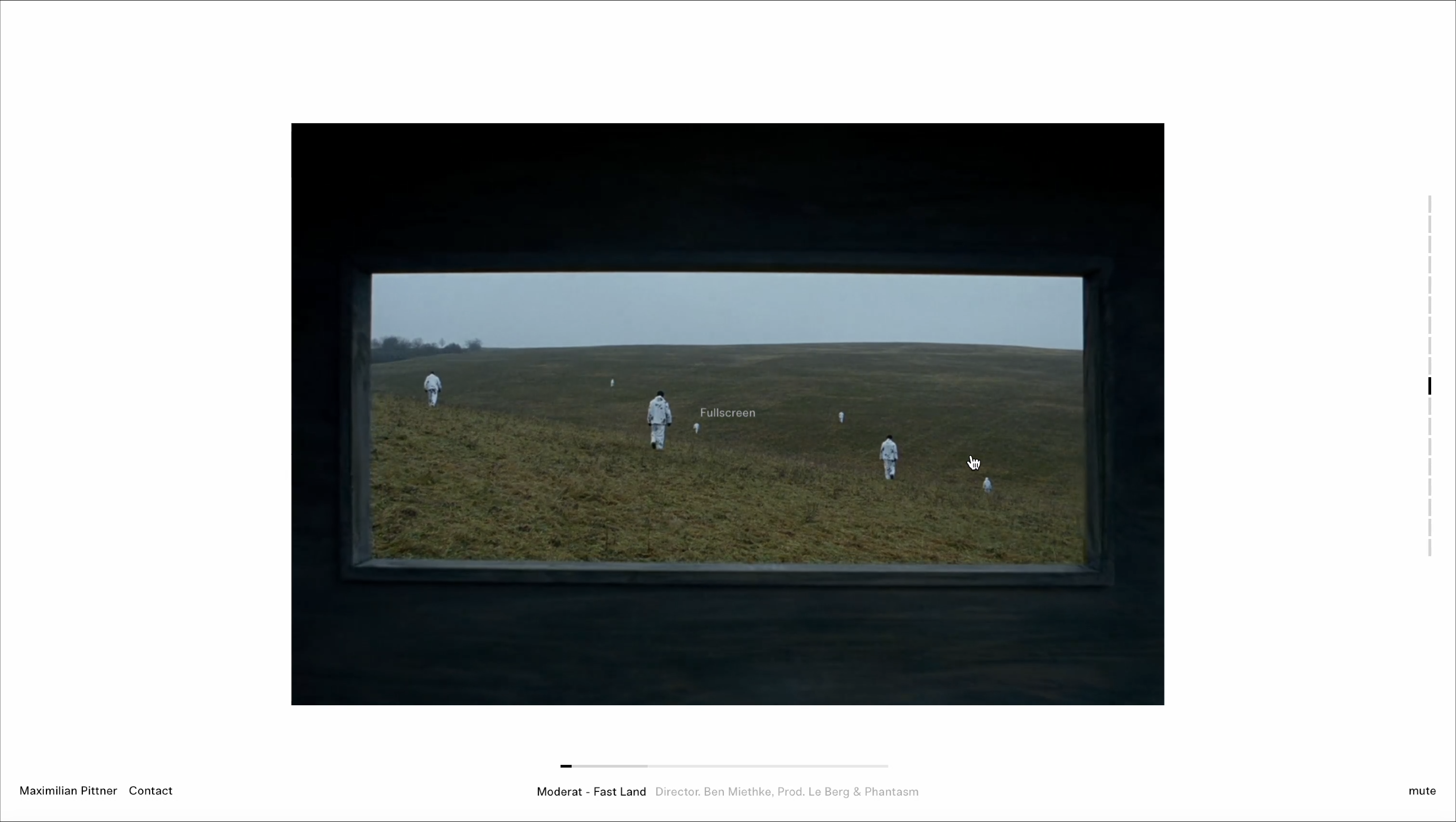
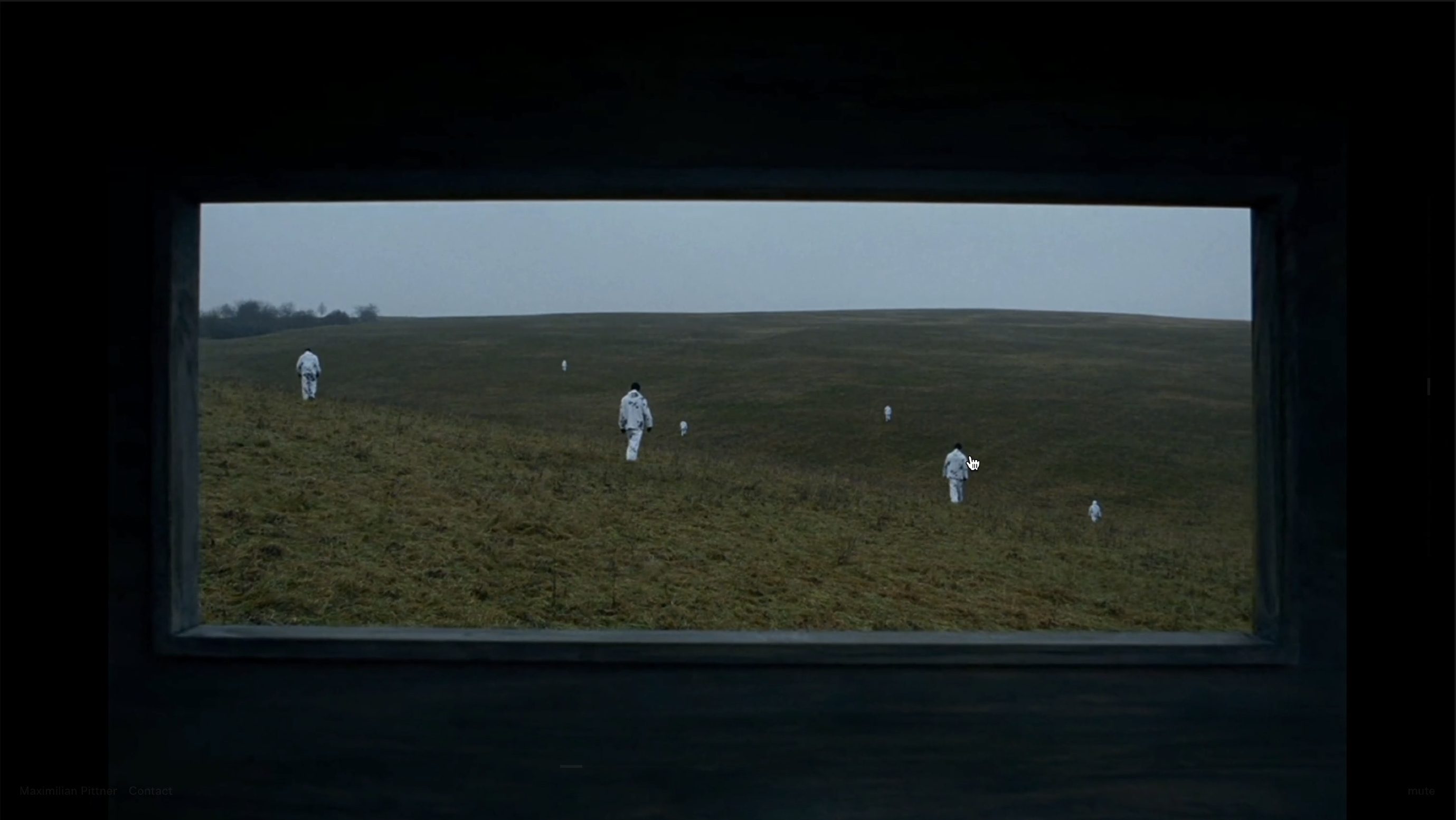
- The video has the affordance to enlarge itself and become fullscreen when it's clicked on
- Hovering over the video with the cursor changes it to a pointer icon and displays the word "fullscreen" in the center.
- When you click on the video, it will expand to fill the entire screen, providing a more immersive viewing experience.
Example 3
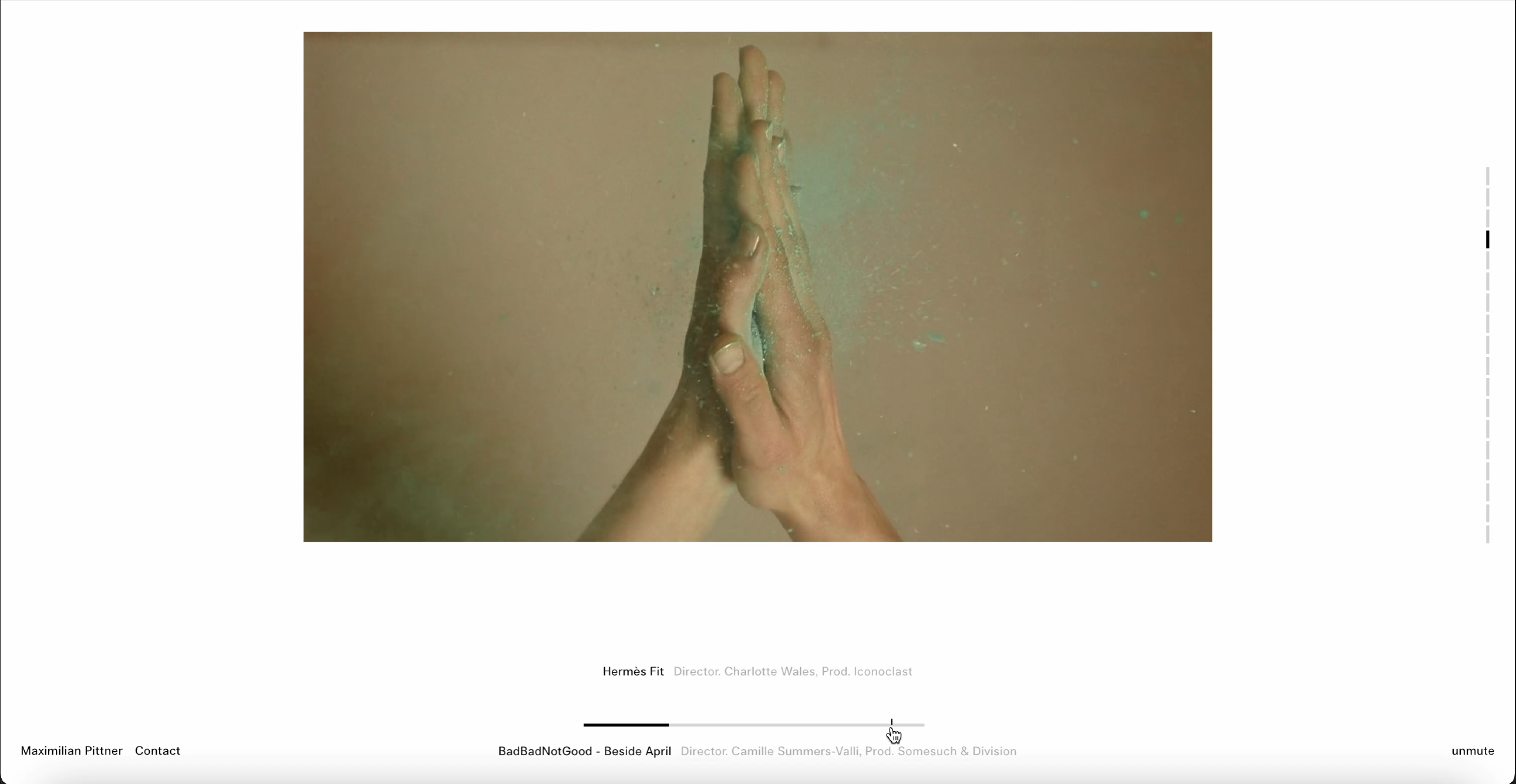
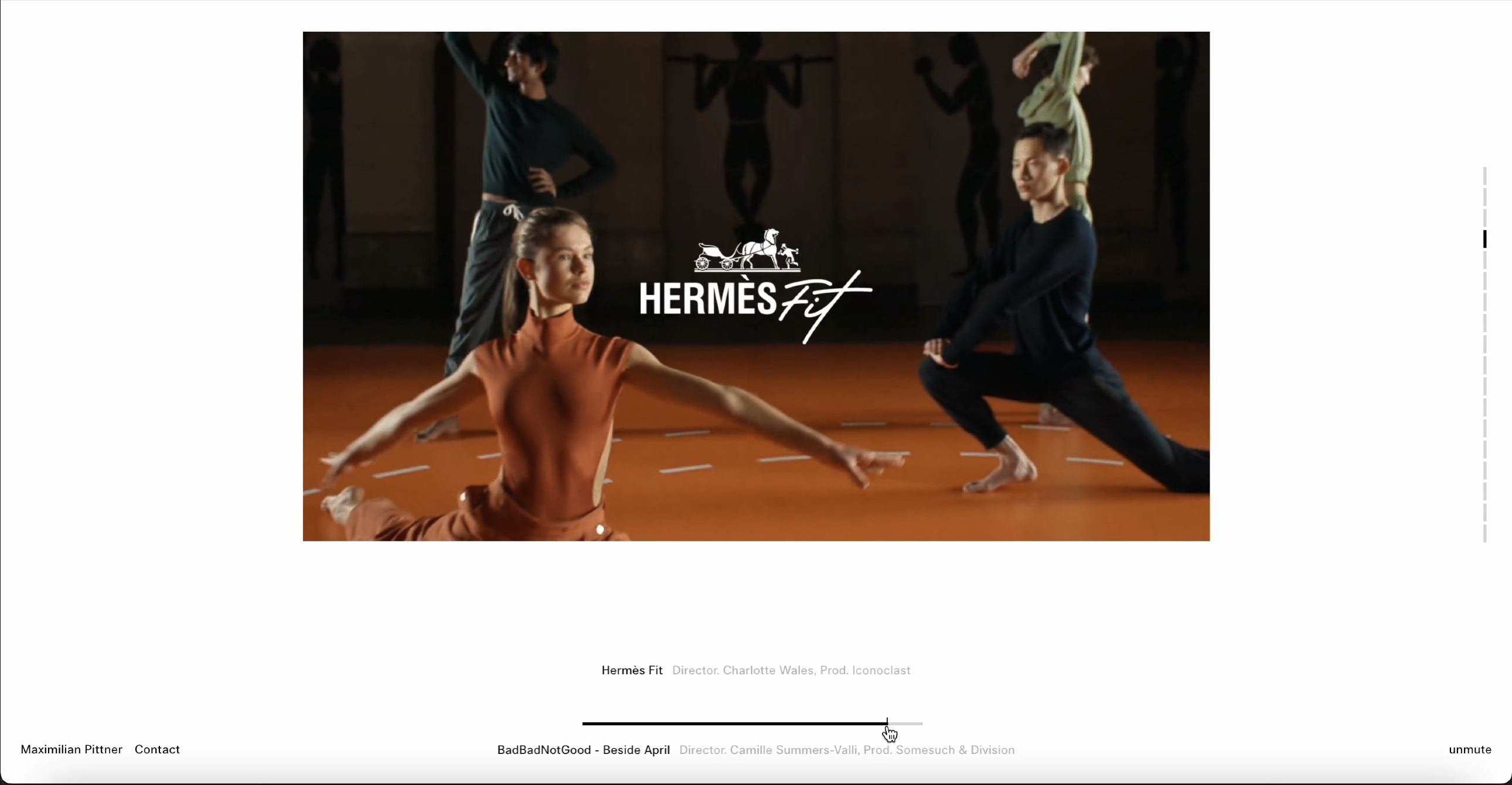
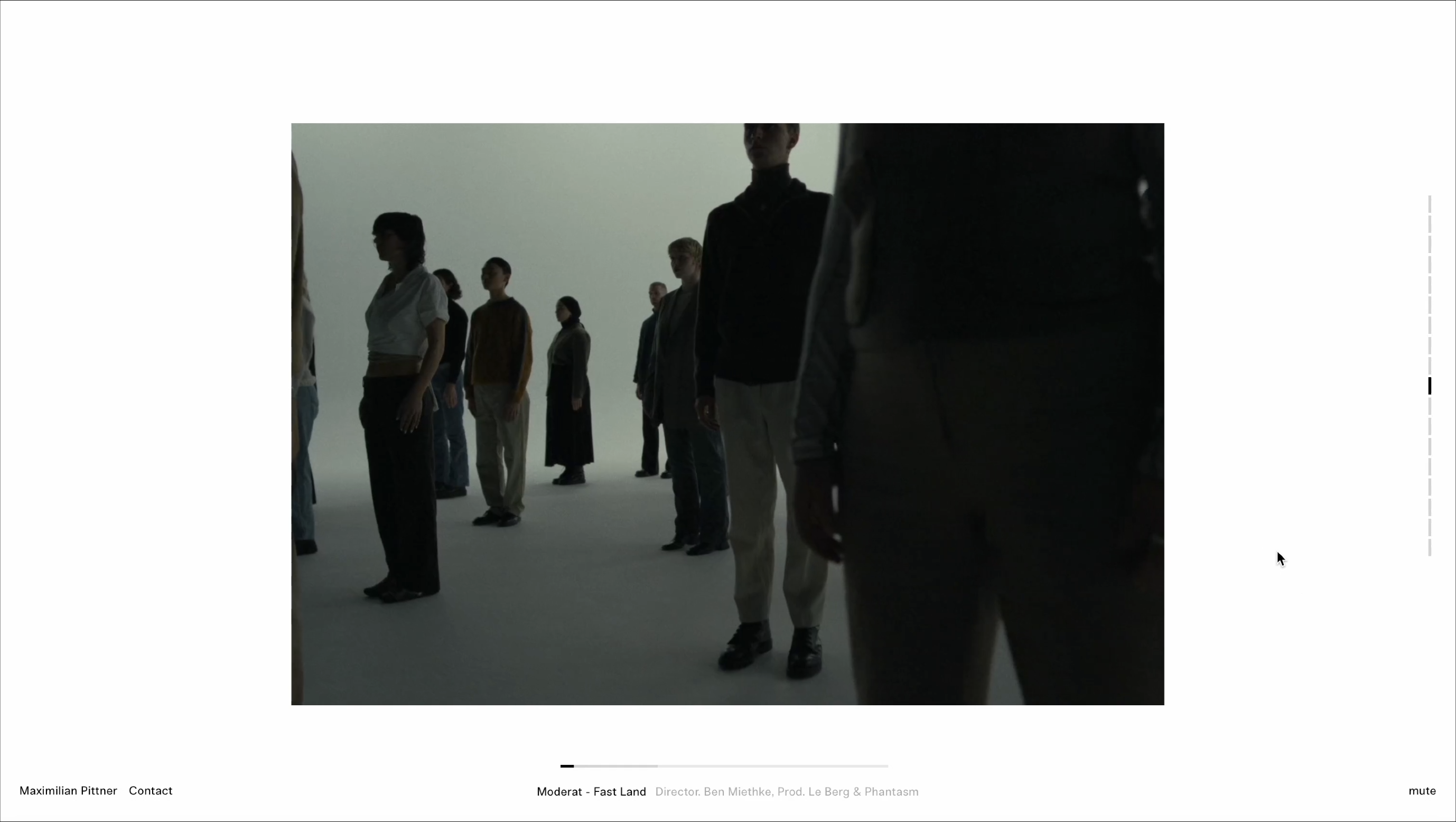
- Beneath the video, a progress bar keeps you informed of the video's current position. This bar also empowers you to navigate through the video by allowing you to rewind or fast-forward at your convenience.
- As you move your mouse over the progress bar, the cursor transforms into a helpful pointer, inviting you to click and instantly jump to any specific part of the video.